
Self-host DocuSeal
Send PDFs for e-signature from your own VM. An open-source DocuSign alternative.
Shelley handles the setup. About 15 minutes.
Prefer a terminal?
curl -fsSL https://exe-staging.dev/deploy/docuseal/prompt.txt | ssh exe.dev new --prompt=/dev/stdinDocuSeal is an open-source e-signature app: upload a PDF or Word file, drag signature, date and text fields onto it (or let it detect them), and send it to one or more signers by email. Each signer gets a link, fills in the form in the browser, and signs by drawing, typing or uploading a signature. DocuSeal then seals the PDF with a digital signature and attaches an audit log, and you get both by email. It is one Docker image with a REST API and webhooks, and with 19k stars on GitHub it is the most-starred of the open-source DocuSign alternatives.
On an exe.dev VM the admin sits on port 3000, which only you and the people
you share the VM with can open. The main address,
https://my-docuseal.exe.xyz/, answers only what signers need: their signing
links, the pages and files those links show, and their signed copies. Until
you connect an email provider, every invitation lands in a private test inbox,
so nothing reaches a real person by accident.
What you get#
- DocuSeal 3.3.8 on PostgreSQL 18, restarted after a reboot.
- A private admin on port 3000 and a public port that answers only signer-facing paths.
- Links in emails that point at https://<vm>.exe.xyz, not localhost.
- A test inbox that catches all mail until the owner connects SES, Postmark or Resend.
- Nightly backups of the database, documents and secrets.
What's running, and where
https://my-docuseal.exe.xyz:3000/
The DocuSeal admin and API, behind exe.dev login and DocuSeal's own
https://my-docuseal.exe.xyz:8025/
The Mailpit test inbox
https://my-docuseal.exe.xyz/s/…
Signing links and signed copies, once you make the VM public
Deploy with Shelley#
Click Deploy and Shelley will set up DocuSeal on a new VM, then check that it works. No config-file wrangling required.
Prefer a terminal?
curl -fsSL \
  https://exe-staging.dev/deploy/docuseal/prompt.txt \
  | ssh exe.dev new --prompt=/dev/stdin
When it's done, run this on your computer (only you can):
ssh exe.dev share set-public my-docuseal # signers open their links without an exe.dev loginWhat Shelley is told
Set up DocuSeal on this VM by following the exe.dev recipe at https://exe-staging.dev/deploy/docuseal.md?via=deploy from top to bottom.

The recipe's example VM name is my-docuseal. This VM's name is the output of `hostname`: use it wherever the recipe writes my-docuseal. Skip the step that creates the VM; you are on it.

You are done when all of these are true. Check each one yourself:
- DocuSeal 3.3.8 on PostgreSQL 18, restarted after a reboot.
- A private admin on port 3000 and a public port that answers only signer-facing paths.
- Links in emails that point at https://<vm>.exe.xyz, not localhost.
- A test inbox that catches all mail until the owner connects SES, Postmark or Resend.
- Nightly backups of the database, documents and secrets.

Read the whole recipe, including closed details, and follow "Install by
hand" first. The walkthrough before it is for the owner afterwards. Do
not run the Restore or Update instructions.
Work as exedev in ~/docuseal. Never overwrite an existing ~/docuseal/.env:
SECRET_KEY_BASE in it encrypts DocuSeal's settings and signing key.
Do not open /setup or create the first account: whoever opens it first
becomes the owner, so the owner does that on port 3000. Do not connect an
email provider or send documents. Leave public sharing off; only the owner
can turn it on. Verify docker.service is enabled, the four containers are
restart unless-stopped and up (db and app healthy), localhost:3000/up
returns 200, localhost:8000/robots.txt returns 200, and localhost:8000/,
/setup and /api/templates redirect (302) to port 3000. Check the backup
timer is enabled and the first dump exists in ~/docuseal/backups.
Finish with the admin URL on port 3000 (telling the owner to create the
first account there right away), the test inbox URL on port 8025, and the
command the owner runs on their own computer to make signing links
public: ssh exe.dev share set-public my-docuseal

Finish with the URLs I should open and these commands, which only I can run, from my own computer (with this VM's name in them):
  ssh exe.dev share set-public my-docuseal   # signers open their links without an exe.dev login
Also at /deploy/docuseal/prompt.txt. The recipe it follows is /deploy/docuseal.md.
Create your account#
Open the admin Shelley gives you, https://my-docuseal.exe.xyz:3000/, right
away. After exe.dev login, DocuSeal shows its first-run setup: whoever fills it
in becomes the owner, which is why this port is private. Enter your name,
email, company and a password. In App URL, remove the :3000, so it reads
https://my-docuseal.exe.xyz. (The APP_URL in .env wins anyway; this
keeps the setting honest.) DocuSeal then offers its developer newsletter;
Skip is fine.
Send your first document#
- Click Upload (or drop a PDF on the page). DocuSeal opens the template editor.
- Click Autodetect Fields to have DocuSeal find the blank lines, or drag Signature, Date, Text and other fields from the right onto the page. Detected fields start as text: click one, then the icon before its name, to make it a signature or a date. More signers? Add a party with + next to First Party and give each field an owner.
- Click Save, then Send, enter a signer's email, keep Send Email ticked, and click Send.
- Open the test inbox,
https://my-docuseal.exe.xyz:8025/. The "You are invited to sign a document" email is there, with a Review and Sign link tohttps://my-docuseal.exe.xyz/s/….
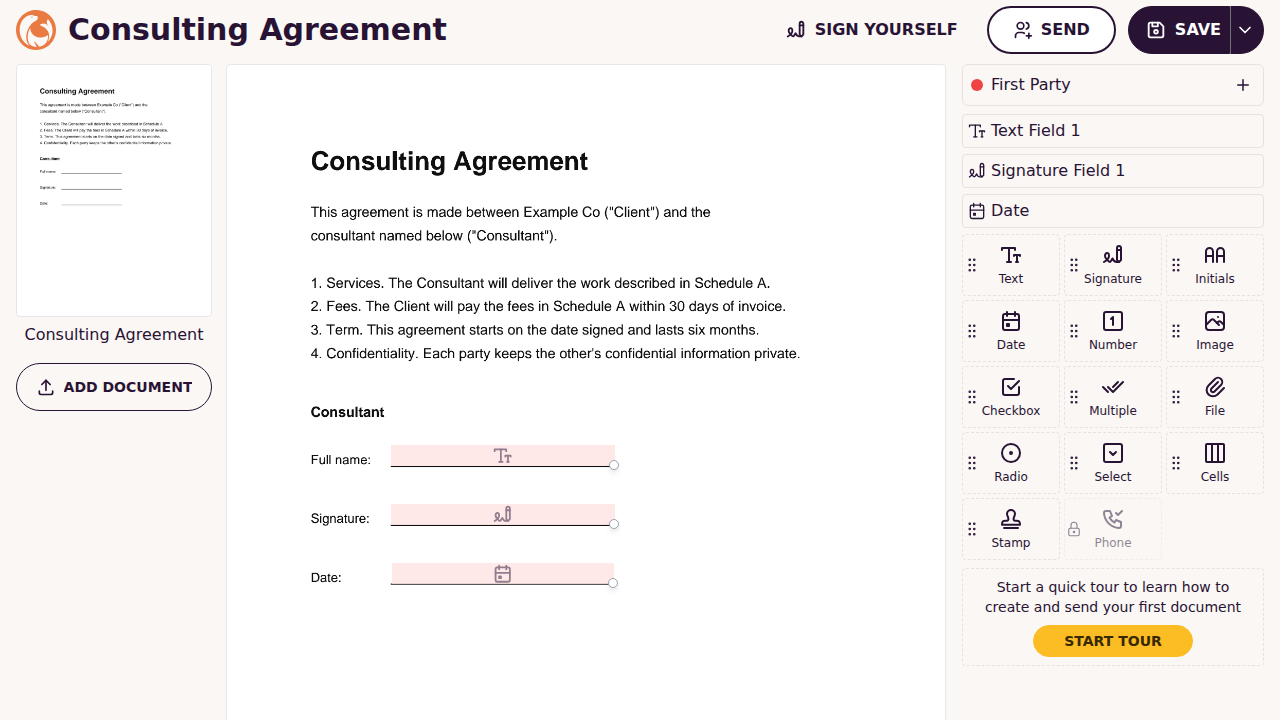
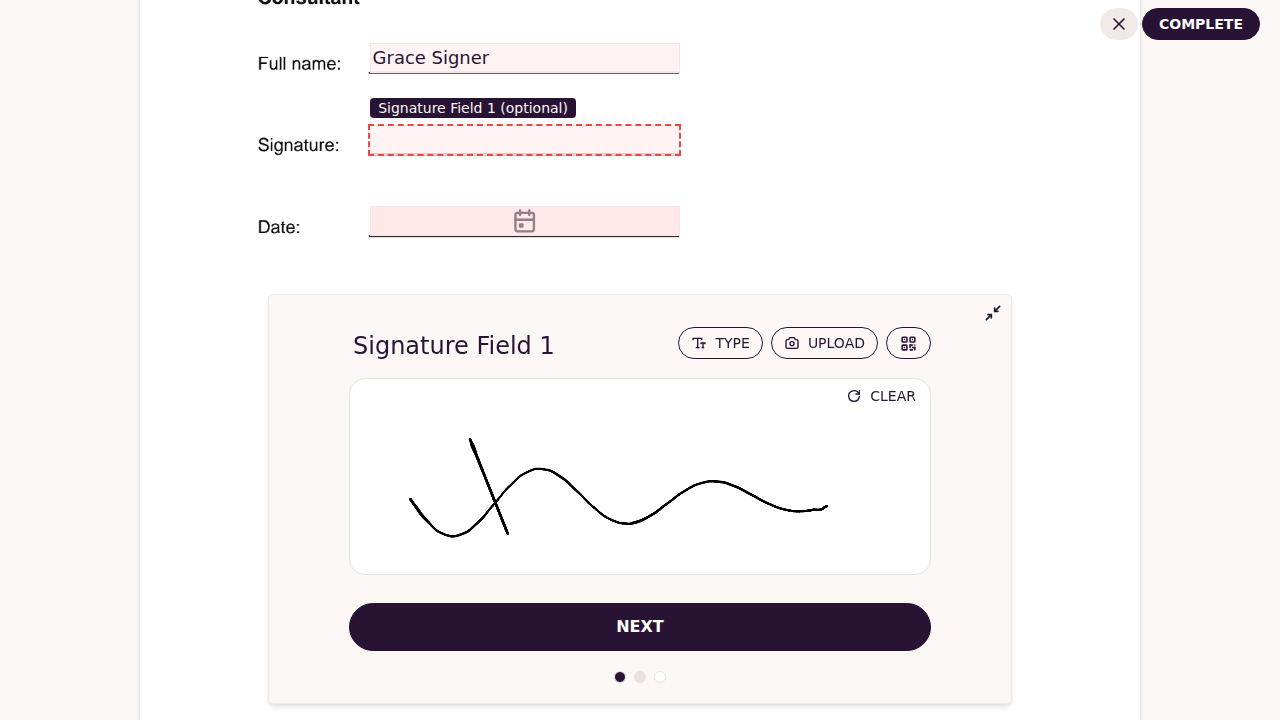
To test as a signer, make the VM public (next section), then open that link in a private browser window, where you aren't logged in to exe.dev. Fill in the fields, sign, and click Complete. Back in the test inbox you'll find the signer's copy and a "completed" note to you, each with the signed PDF and an Audit Log PDF attached.
Sign it yourself on the template page is for documents only you sign. The Link button there shares one link anyone can use to fill in the template, which suits waivers and intake forms.
Make signing links public#
Until now everything on the VM has been private, so a signer would be asked to log in to exe.dev. On your computer:
ssh exe.dev share set-public my-docuseal
That opens port 8000 to everyone, and nothing else. The HTTPS proxy keeps ports 3000 and 8025 private, and the public proxy on 8000 forwards only these paths to DocuSeal:
| Path | What it is |
|---|---|
/s/… |
A signer's form: view, fill in, upload a signature, decline, download |
/d/… |
A template's shared link, if you turn one on |
/p/… |
Drawing a signature on a phone, from the QR code in the form |
/e/… |
The signer's signed copy, linked from their email |
/file/…, /blobs_proxy/…, /disk/…, /preview/… |
Page images and PDFs, through signed links |
/success, /send_submission_email, email 2FA |
The steps around finishing a form |
/packs/…, /fonts/… |
Scripts, styles and signature fonts |
Every other path, the admin, its sign-in page, /setup and the API, redirects
to the same path on port 3000, behind exe.dev login. That also makes the
"completed" email's link to the submission work for you. Check from your
computer:
curl -sI https://my-docuseal.exe.xyz/robots.txt | head -1   # HTTP/2 200
curl -sI https://my-docuseal.exe.xyz/setup | grep -i location # …:3000/setup
The proxy passes the signer's real address on, so the audit log records it.
Connect an email provider#
Invitations and copies go out through an email provider over authenticated SMTP on port 587. Pick one, verify your sending domain with it (it gives you SPF, DKIM and DMARC records to add at your DNS host), and create SMTP credentials.
| Provider | SMTP_ADDRESS |
SMTP_USERNAME |
SMTP_PASSWORD |
|---|---|---|---|
| Amazon SES | email-smtp.<region>.amazonaws.com |
SMTP username | SMTP password (not your AWS keys) |
| Postmark | smtp.postmarkapp.com |
Server API token | Server API token |
| Resend | smtp.resend.com |
resend |
An API key |
DocuSeal reads its mail settings from ~/docuseal/.env. On the VM, open it
(nano ~/docuseal/.env) and replace the email block with your provider's:
SMTP_ADDRESS=smtp.resend.com
SMTP_PORT=587
SMTP_USERNAME=resend
SMTP_PASSWORD=re_your_api_key
SMTP_FROM=Example Co <sign@example.com>
SMTP_FROM must be on your verified domain. Then apply it and stop the test
inbox:
cd ~/docuseal
docker compose up -d --wait app
docker compose stop mailpit
Send yourself a document to check. Failed sends show up in
docker compose logs app and retry on their own; DocuSeal's
Settings → Email page stays hidden while .env sets the server. New SES
accounts start in a sandbox that only mails verified addresses, and Postmark
reviews new accounts.
What a signed document proves#
Every completed submission produces two PDFs:
- The signed document, with the fields filled in and a PDF digital signature (PKCS#7, SHA-256) over the whole file. Any later change breaks the signature. DocuSeal signs with a certificate it generated for your instance, so PDF readers show it as "unknown" signer. To have it show as your organisation, upload a certificate from a CA under Settings → E-Signature; the same page verifies a PDF someone sends back.
- The audit log: the original and final SHA-256 of the document, each signer's email (marked verified when they came from the email link), IP address, user agent, time zone and session, and a timed event log: sent, opened, started, completed.
Whether that is enough depends on where you are and what you sign. Most countries accept simple electronic signatures for ordinary contracts; some documents (wills, property deeds, some regulated filings) need more, such as a qualified signature under the EU's eIDAS. This is general information, not legal advice.
Use the API, webhooks and MCP#
REST API#
Everything you do in the admin is also a REST API
at https://my-docuseal.exe.xyz:3000/api. A script on another machine needs
two credentials: an exe.dev VM token to get past
the proxy, and DocuSeal's API key from Settings → API.
On your computer, make a token for this VM only:
ssh exe.dev ssh-key generate-api-key --vm=my-docuseal --label=docuseal-api
Send it in X-Exedev-Authorization, which the proxy removes, and DocuSeal's
key in X-Auth-Token. This sends template 1 to a signer:
curl https://my-docuseal.exe.xyz:3000/api/submissions \
  -H "X-Exedev-Authorization: Bearer $EXE_VM_TOKEN" \
  -H "X-Auth-Token: $DOCUSEAL_API_KEY" \
  -H 'Content-Type: application/json' \
  -d '{"template_id": 1, "send_email": true,
       "submitters": [{"role": "First Party", "email": "signer@example.com"}]}'
The answer includes each signer's embed_src, their public /s/… link, if
you'd rather deliver it yourself (with "send_email": false). Shelley on the
VM needs no exe.dev token: it can call http://localhost:3000/api/ with the
API key alone. Ask it to "send the NDA template to everyone in this CSV".
Webhooks#
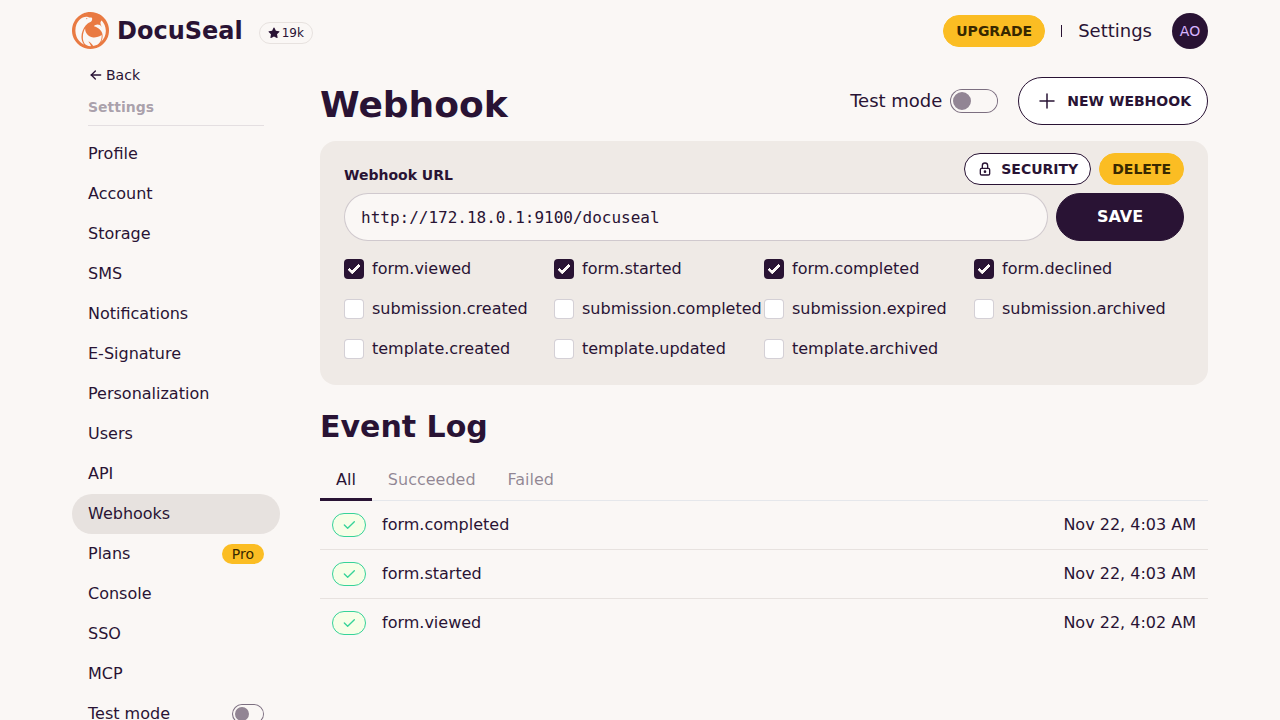
Under Settings → Webhooks, add your endpoint's URL and pick events:
form.viewed, form.started, form.completed and form.declined per
signer, plus submission.* and template.* events you can tick. Each
form.completed payload has the signer's values and links to the signed PDF
and audit log.
Security on the webhook offers two protections; use both:
- Secret: a header name and value DocuSeal adds to every request. If your
receiver is on another exe.dev VM, make this
X-Exedev-AuthorizationwithBearer <that VM's token>and the receiver can stay private. - HMAC: a
whsec_…key. Each request carriesX-Docuseal-Signature: <timestamp>.<hex>, where<hex>is the HMAC-SHA256 of<timestamp>.<raw body>with the whole key as the secret. Reject timestamps more than five minutes old.
import hmac, hashlib, time

def verify(raw_body: bytes, header: str, key: str) -> bool:
    ts, sig = header.split(".", 1)
    if abs(time.time() - int(ts)) > 300:
        return False
    want = hmac.new(key.encode(), ts.encode() + b"." + raw_body, hashlib.sha256).hexdigest()
    return hmac.compare_digest(want, sig)
The webhook page keeps an event log with each delivery's status, and retries failed ones.
MCP for AI agents#
DocuSeal has a built-in MCP server at https://my-docuseal.exe.xyz:3000/mcp
with tools to search and load templates, create templates and send documents.
Turn it on and create a token under Settings → MCP; a client sends that
token as Authorization: Bearer, and, from outside the VM, an exe.dev VM token
in X-Exedev-Authorization as above.
Embedding the signing form or template builder in your own site with
DocuSeal's JavaScript and React components is a Pro feature. The open-source
edition can still hand signers the /s/… link from the API.
Store documents in S3#
By default, uploaded and signed documents live on the VM's disk in
~/docuseal/data, and the backup covers them. To keep them in a bucket
instead, such as one from our S3 storage recipe or
AWS, add this to .env and run docker compose up -d --wait app:
S3_ATTACHMENTS_BUCKET=docuseal
AWS_ACCESS_KEY_ID=...
AWS_SECRET_ACCESS_KEY=...
AWS_REGION=us-east-1
S3_ENDPOINT=https://s3.example.com   # only for non-AWS storage
DocuSeal streams files through its own signed links, so the bucket stays private. Documents already on disk stay there; switch before you send real ones. We haven't tested this path end to end. Google Cloud Storage and Azure have their own variables in DocuSeal's deployment docs.
Share the admin#
The admin is private to you until you share the VM. On your computer:
ssh exe.dev share add my-docuseal alice@example.com
They sign in to exe.dev, then to DocuSeal with an account you create for them
under Settings → Users. See sharing. To use your own
domain for signing links, like sign.example.com, add a CNAME to
my-docuseal.exe.xyz, run ssh exe.dev domain add my-docuseal sign.example.com,
and set APP_URL=https://sign.example.com in .env; see
custom domains.
Keep your documents safe#
Templates, submissions and the audit trail live in PostgreSQL in
~/docuseal/postgres; uploaded and signed files in ~/docuseal/data. Every
night a database dump, an archive of the files, and a copy of .env go to
~/docuseal/backups. .env matters as much as the rest: its
SECRET_KEY_BASE encrypts DocuSeal's settings and its signing key, so a
database restored without it can't use them. Keep a copy off the VM. On
your computer:
scp -r my-docuseal.exe.xyz:docuseal/backups docuseal-backups
The backups hold signed contracts, signers' details and credentials, so store them like a password. For a copy of the whole disk, see VM backups to your own S3 bucket (a preview feature).
The nuts and bolts#
These are Shelley's setup steps and your maintenance reference. Tested with DocuSeal 3.3.8, PostgreSQL 18.7, nginx 1.30 and Mailpit 1.34.0 on November 22, 2026.
Install by hand
Create a VM#
On your computer (pick another name if my-docuseal is taken):
ssh exe.dev new --name=my-docuseal
ssh my-docuseal.exe.xyz
The remaining commands run on the VM, as exedev.
Write the secrets#
The database password, DocuSeal's SECRET_KEY_BASE, the public address and
the test inbox. The file is created only once, so running this again keeps
them:
sudo systemctl enable --now docker.service
mkdir -p ~/docuseal && cd ~/docuseal
if [ ! -f .env ]; then
  (umask 077; cat > .env <<EOF
APP_URL=https://$(hostname).exe.xyz
POSTGRES_PASSWORD=$(openssl rand -hex 24)
SECRET_KEY_BASE=$(openssl rand -hex 64)
# Email: the test inbox until you connect a provider.
SMTP_ADDRESS=mailpit
SMTP_PORT=1025
SMTP_ENABLE_STARTTLS=false
SMTP_FROM=DocuSeal <docuseal@$(hostname).exe.xyz>
EOF
  )
fi
ls -l .env
ls shows -rw-------. Enabling docker.service makes the containers come
back after a reboot. APP_URL is the address DocuSeal puts in every link it
emails.
Start DocuSeal#
cd ~/docuseal
cat > compose.yaml <<'EOF'
name: docuseal
services:
  db:
    image: postgres:18-alpine
    restart: unless-stopped
    environment:
      POSTGRES_DB: docuseal
      POSTGRES_USER: docuseal
      POSTGRES_PASSWORD: ${POSTGRES_PASSWORD}
    volumes: ["./postgres:/var/lib/postgresql"]
    healthcheck:
      test: ["CMD-SHELL", "pg_isready -U docuseal -d docuseal"]
      interval: 5s
      retries: 20
  app:
    image: docuseal/docuseal:3.3.8
    restart: unless-stopped
    env_file: .env
    environment:
      DATABASE_URL: postgresql://docuseal:${POSTGRES_PASSWORD}@db:5432/docuseal
      FORCE_SSL: "true"
    ports: ["3000:3000"]
    volumes: ["./data:/data/docuseal"]
    depends_on:
      db: { condition: service_healthy }
    healthcheck:
      test: ["CMD-SHELL", "wget -qO- http://127.0.0.1:3000/up >/dev/null"]
      interval: 10s
      retries: 30
  public:
    image: nginx:1.30-alpine
    restart: unless-stopped
    ports: ["8000:8000"]
    volumes: ["./public.conf:/etc/nginx/conf.d/default.conf:ro"]
    depends_on: [app]
  mailpit:
    image: axllent/mailpit:v1.34.0
    restart: unless-stopped
    ports: ["8025:8025"]
EOF

cat > public.conf <<'EOF'
server {
    listen 8000;
    access_log off;
    client_max_body_size 20m;
    resolver 127.0.0.11 valid=30s;
    set $docuseal http://app:3000;

    # exe.dev's proxy puts the signer's address last in X-Forwarded-For.
    # DocuSeal writes it into the audit log.
    set_real_ip_from 0.0.0.0/0;
    set_real_ip_from ::/0;
    real_ip_header X-Forwarded-For;
    proxy_set_header Host $host;
    proxy_set_header X-Forwarded-For $remote_addr;
    proxy_set_header X-Forwarded-Proto https;

    # What signers reach. Nothing else is public.
    location ~ ^/(s|d|p|e)/ { proxy_pass $docuseal; }      # signing, shared links, phone signature, signed copy
    location ~ ^/(disk|file|blobs_proxy|preview)/ { proxy_pass $docuseal; }  # page images and PDFs, signed links
    location ~ ^/submitters/[^/]+/download$ { proxy_pass $docuseal; }
    location ~ ^/(success|send_submission_email|submit_form_email_2fa|start_form_email_2fa_send|resubmit_form|start_form_self)(\.json|/|$) { proxy_pass $docuseal; }
    location = /api/submitter_form_views { proxy_pass $docuseal; }
    location ~ ^/(packs|fonts)/ { proxy_pass $docuseal; }   # scripts, styles, signature fonts
    location ~ ^/(favicon[^/]*|apple-[^/]*\.png|logo\.svg|service-worker\.js|manifest)$ { proxy_pass $docuseal; }
    location = /robots.txt { default_type text/plain; return 200 "User-agent: *\nDisallow: /\n"; }

    # Everything else is the admin: send it to the private port, behind exe.dev login.
    location / { return 302 https://VM_HOST:3000$request_uri; }
}
EOF
sed -i "s/VM_HOST/$(hostname).exe.xyz/" public.conf

docker compose up -d --wait --wait-timeout 300
docker compose ps
curl -s -o /dev/null -w 'health %{http_code}\n' localhost:3000/up
curl -s -o /dev/null -w 'robots on the public port %{http_code}\n' localhost:8000/robots.txt
curl -s -o /dev/null -w 'setup on the public port %{http_code} %{redirect_url}\n' localhost:8000/setup
curl -s -o /dev/null -w 'API on the public port %{http_code} %{redirect_url}\n' localhost:8000/api/templates
printf 'Admin: https://%s.exe.xyz:3000/\nTest inbox: https://%s.exe.xyz:8025/\n' "$(hostname)" "$(hostname)"
All four services start in under a minute; db and app report
healthy. DocuSeal creates its tables on first start. The checks print
health 200, robots on the public port 200, and a 302 to port 3000 for
/setup and the API.
What the pieces do:
- The HTTPS proxy sends
https://my-docuseal.exe.xyz/to port 8000, and:3000and:8025to DocuSeal and Mailpit. Those two ports always need exe.dev login. - The public proxy on 8000 forwards only the signer-facing paths listed in Make signing links public and redirects the rest to port 3000.
FORCE_SSLmakes DocuSeal buildhttps://links and set secure cookies; the exe.dev proxy terminates TLS for it.- The DocuSeal image runs its own Redis and background jobs inside the one container, so there is nothing else to run. At rest the stack used about 320 MB of memory in our test.
- Mailpit accepts any mail on port 1025 inside the Compose network and shows it on 8025. It keeps messages in memory, so a restart clears it.
Set up nightly backups#
pg_dump copies the database while DocuSeal keeps running. The script checks
each dump is readable, archives the documents (from inside the container,
which owns them), and keeps two weeks:
cd ~/docuseal
cat > backup.sh <<'EOF'
#!/bin/sh
set -eu
umask 077
cd "$(dirname "$0")"
mkdir -p backups
stamp=$(date +%Y%m%d-%H%M%S)
out="backups/docuseal-$stamp.dump"
docker compose exec -T db pg_dump -U docuseal -d docuseal -Fc > "$out.tmp"
docker compose exec -T db pg_restore --list < "$out.tmp" > /dev/null
mv "$out.tmp" "$out"
docker compose exec -T app tar -czf - -C /data/docuseal . > "backups/files-$stamp.tar.gz"
cp .env backups/docuseal.env
find backups -name 'docuseal-*.dump' -mtime +14 -delete
find backups -name 'files-*.tar.gz' -mtime +14 -delete
EOF
chmod +x backup.sh

sudo tee /etc/systemd/system/docuseal-backup.service >/dev/null <<'EOF'
[Unit]
Description=Back up DocuSeal
After=docker.service

[Service]
Type=oneshot
User=exedev
ExecStart=/home/exedev/docuseal/backup.sh
EOF
sudo tee /etc/systemd/system/docuseal-backup.timer >/dev/null <<'EOF'
[Unit]
Description=Back up DocuSeal nightly

[Timer]
OnCalendar=daily
Persistent=true

[Install]
WantedBy=timers.target
EOF
sudo systemctl daemon-reload
sudo systemctl enable --now docuseal-backup.timer
sudo systemctl start docuseal-backup.service
systemctl list-timers docuseal-backup.timer
ls -l backups
The timer lists its next run, and backups holds a .dump, a
files-….tar.gz and docuseal.env. Now open the admin and follow the
walkthrough at the top.
Restore from a backup
On the VM, with the stack running. This replaces the database with the dump and puts the documents back:
cd ~/docuseal
dump=$(ls -t backups/docuseal-*.dump | head -1)
files=$(ls -t backups/files-*.tar.gz | head -1)
docker compose stop app
docker compose exec -T db pg_restore -U docuseal -d docuseal --clean --if-exists < "$dump"
docker compose run --rm -T --no-deps --entrypoint tar app -xzf - -C /data/docuseal < "$files"
docker compose up -d --wait
On a new VM, copy backups/ over and put backups/docuseal.env in place as
~/docuseal/.env before you run "Install by hand", so the database
password and SECRET_KEY_BASE match. Then restore as above. If the new VM has
a different name, change APP_URL in .env and the VM_HOST in
public.conf, and run docker compose up -d --wait and
docker compose restart public.
Update
Read the release notes first; DocuSeal releases often, and security fixes like 3.3.8's come as ordinary point releases. Back up, change the image tag, and restart. DocuSeal migrates its database on start:
cd ~/docuseal
./backup.sh
sed -i 's#docuseal/docuseal:3.3.8#docuseal/docuseal:X.Y.Z#' compose.yaml
docker compose pull app
docker compose up -d --wait
docker compose exec app cat /app/.version
Replace X.Y.Z with the new tag. If a release adds a signer-facing path,
the public port redirects it to port 3000 until you add a location for it
to public.conf. To update PostgreSQL to a new major version, dump, start a
fresh postgres container on an empty data directory, and restore; see
our PostgreSQL recipe.
Troubleshooting
- Links in emails point to
localhostor:3000.APP_URLin.envmust behttps://my-docuseal.exe.xyz(or your domain). Fix it and rundocker compose up -d --wait app. - Signers see an exe.dev login page. The VM isn't public yet:
ssh exe.dev share set-public my-docuseal.ssh exe.dev share show my-docusealshows the setting. - A signer's page half loads, or redirects to port 3000. A path it needs
isn't in
public.conf. Find it withdocker compose logs app | grep '"host":"my-docuseal.exe.xyz"', add alocation, and rundocker compose restart public. - Mail doesn't arrive, and the logs say
502 5.5.1or authentication failed. For the test inbox,.envmust have noSMTP_USERNAMEline at all; an empty one makes DocuSeal try to log in. For a provider, check the credentials, thatSMTP_FROMis on your verified domain, and the provider's activity log. DocuSeal retries failed sends; see them withdocker compose logs app | grep -i smtp. - Mail lands in spam. Check SPF, DKIM and DMARC for your sending domain with your provider.
- Settings or the signing key stop working after a restore. The
.envdoesn't match the database: put back thedocuseal.envfrom the same backup. - Containers don't come back after a reboot.
systemctl is-enabled docker.servicemust sayenabled; runsudo systemctl enable --now docker.service.
Frequently asked questions#
Is DocuSeal free?
The open-source edition is, under the AGPL-3.0, with no limit on documents, templates or users. Some features are in DocuSeal's paid Pro edition: embedding the signing form in your own app, white-label branding, user roles, automatic reminders, SMS verification, bulk send and SSO. You pay for the VM (exe.dev plans) and for your email provider.
Are DocuSeal signatures legally binding?
That depends on your country and the kind of document, not on the software. Many places, including the US (ESIGN Act) and the EU (eIDAS), accept electronic signatures for most contracts, and some documents still need a qualified signature, a witness or a notary. DocuSeal gives you the evidence (a sealed PDF and an audit log with email verification, IP address and timestamps); this page isn't legal advice, so ask a lawyer for anything that matters.
Can the VM send the emails itself?
Don't. A new server's IP has no sending reputation, so invitations would land in spam. Use an SMTP provider such as Amazon SES, Postmark or Resend on port 587. exe.dev's own email sending only delivers to people who have a relationship with the VM, not to your signers.
Do I need to update to DocuSeal 3.3.8?
Yes, if you run anything older. 3.3.8 (November 19, 2026) is a security release that moves to Ruby 4.0.10 to fix an unauthenticated denial of service (GHSA-78g6-f52x-q3jx). This page pins it; see Update.
Can I use SQLite instead of PostgreSQL?
DocuSeal falls back to SQLite when DATABASE_URL is empty, and that works for one person. This page uses PostgreSQL so the nightly backup is a consistent pg_dump while DocuSeal keeps running, and so it grows with your submissions.
Can I sign in to DocuSeal with my exe.dev login?
Not directly: DocuSeal has its own accounts, and SSO is a Pro feature. exe.dev login guards the admin port in front of it, so a stranger never reaches DocuSeal's sign-in page or the first-run setup.
Published Nov 23, 2026 · Updated Nov 23, 2026 · tested end to end Nov 22, 2026 · Markdown · manifest.json · Something wrong? Tell us